How to pay with Solana on Cryptorefills: Backpack and Solflare guide

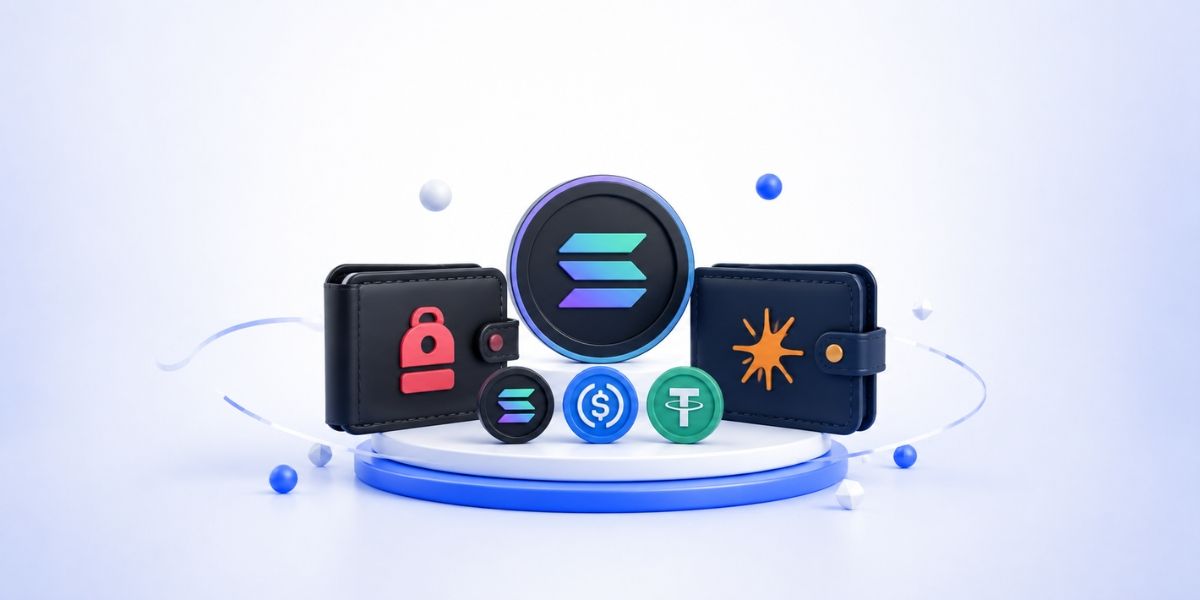
Backpack and Solflare: what to know before you start
Phantom remains the most widely used Solana wallet, and Cryptorefills published a guide for Phantom users covering the full checkout flow. This one covers Backpack and Solflare, the two fastest-growing alternatives in the Solana wallet ecosystem. Both wallets connect to Cryptorefills through the same underlying WalletConnect flow but the interface steps differ between them, and each has wallet-specific behaviour worth knowing before your first purchase.
We tested both wallets on desktop and mobile in May 2026 against live Cryptorefills orders. The steps below reflect the current interfaces for each. For a general overview of spending SOL on Cryptorefills across all wallets, see the pay with SOL guide.
Paying with Backpack
Backpack is a multi-chain wallet with a Solana-native focus, built by Coral, the team behind the xNFT standard. It supports SOL, USDC on Solana, and USDT on Solana. The browser extension is available for Chrome and Firefox. The mobile app is available on iOS and Android.
- Navigate to the product page on Cryptorefills and select your gift card denomination. If you need ideas on which gift cards work best for Solana users, the Solana gift card guide covers the full category breakdown.
- At the payment screen, choose Solana as the network. Select your preferred token: SOL, USDC, or USDT.
- Cryptorefills generates a payment address and amount. If you are on desktop with the Backpack extension installed, a connection prompt appears automatically. If not, copy the wallet address and amount manually.
- In Backpack, open the Send panel. Paste the Cryptorefills payment address, enter the exact amount shown (including token precision; USDC uses 6 decimal places), and confirm.
- Backpack displays a transaction preview including the estimated fee (typically under $0.01 on Solana). Approve the transaction.
- Return to the Cryptorefills order page. Confirmation usually appears within 30 to 90 seconds. The gift card code delivers to your email once the order is fulfilled, typically within two to five minutes of confirmation.
Backpack-specific note: If you hold multiple tokens in Backpack, double-check the token selection before confirming. The send interface defaults to the last token used, which may not match the token selected at Cryptorefills checkout. Sending SOL to an address expecting USDC will not complete the order.
Paying with Solflare
Solflare is the longest-standing dedicated Solana wallet and the one most commonly used by users who arrived during early Solana growth cycles. It supports SOL, USDC, and USDT. The browser extension covers Chrome, Firefox, Brave, and Edge. The mobile app is available on iOS and Android and includes a built-in browser for connecting to web applications directly.
- Navigate to the product page on Cryptorefills and select your denomination.
- At the payment screen, select Solana as the network and choose your token.
- If connecting on mobile via the Solflare in-app browser: open Solflare, tap the browser tab at the bottom of the app, navigate to cryptorefills.com, complete your selection, and the wallet connects natively without a separate WalletConnect step.
- If connecting on desktop: the Solflare extension detects the payment request and presents an approval modal. Review the recipient address and amount, then approve.
- If the automatic connection does not trigger (this can happen if Solflare is locked), unlock the extension manually and refresh the Cryptorefills payment page. The connection prompt reappears.
- Confirmation appears within 30 to 90 seconds. Gift card code delivers by email.
Solflare-specific note: Solflare's mobile in-app browser is the most reliable connection method for mobile purchases. Using the Cryptorefills mobile site from an external browser (Safari, Chrome) and then trying to open Solflare separately can interrupt the payment flow on some iOS versions. Start from inside Solflare on mobile.
Troubleshooting both wallets
The most common issue across both wallets is sending the wrong token, such as SOL instead of USDC or vice versa. If you send the wrong token, contact Cryptorefills support immediately with your transaction hash. Orders where the wrong token is sent cannot be fulfilled automatically. The Solana payment errors guide covers the full list of common issues and how to resolve them.
The second most common issue is underpayment due to rounding. Copy the exact amount shown at Cryptorefills checkout rather than rounding to a whole number. A payment of 24.99 USDC when 25.00 was required will not trigger order fulfilment.
If your order shows as pending beyond ten minutes, the Solana network congestion dashboard at solana.com/news is worth checking. During periods of high validator load, confirmation can take longer than usual. The order will complete once the transaction confirms. No action is required from your side.
What to buy with Backpack or Solflare on Cryptorefills
Once your wallet is connected and you have completed a first purchase, the same flow works across all product categories on Cryptorefills: gift cards, eSIMs, flights, and mobile top-ups. The Solana gift card guide covers which categories and brands work best. For eSIM purchases specifically, the eSIM and Solana guide covers plan selection by region and the installation process after purchase.
Frequently asked questions
- Yes. Both wallets support the WalletConnect standard which Cryptorefills uses for browser-based wallet connections. The connection prompt appears automatically when your wallet extension is installed and unlocked.
- Yes. Backpack has iOS and Android apps that support Solana payments. For Solflare on mobile, using the built-in in-app browser gives the most reliable connection. Opening Cryptorefills from an external browser and switching to Solflare mid-flow can interrupt the process on some devices.
- Both wallets support native SOL, USDC on Solana, and USDT on Solana at Cryptorefills checkout. Select Solana as the network and then choose your preferred token at the payment screen. The pay with SOL guide has a full breakdown of supported tokens and networks.
- Wait ten minutes and check whether the transaction has confirmed on a Solana explorer such as solscan.io using your transaction hash. If confirmed but the order is still pending, contact Cryptorefills support with the transaction hash and your order reference number. Common causes are covered in the Solana payment errors guide.
- Wait ten minutes and check whether the transaction has confirmed on a Solana explorer such as solscan.io using your transaction hash. If confirmed but the order is still pending, contact Cryptorefills support with the transaction hash and your order reference number. Common causes are covered in the Solana payment errors guide.