How to sign a message with your Ethereum Wallet
Go to Etherscan's signature tool, connect your wallet, paste the message you were given, and sign. It takes about two minutes and costs nothing.
What signing a message means
Your wallet produces a unique code, called a signature, that anyone can check against your address. It confirms the message was approved by the holder of that wallet.
The signature is text only. Your balance stays where it is, the operation carries no gas fee, and your seed phrase stays private throughout. Anyone asking for your seed phrase or private key is attempting a scam, whatever reason they give.
Why you might sign a message
A signed message proves ownership while keeping everything sensitive to yourself. Common reasons:
- Proving you made a payment. Show a merchant or support team that you control the wallet that paid for an order, even if you've lost access to the email you used.
- Logging in with your wallet. Many apps use Sign-In with Ethereum in place of a password.
- Claiming a reward or allowlist spot. Projects ask you to sign to confirm you hold an eligible address.
- Verifying your identity on a platform. Exchanges and marketplaces may ask you to link a wallet to your account.
- Making a public statement. Publish a signed message so anyone can confirm it came from your address.
Before you start
You need three things ready:
- The right wallet. If you were asked to sign with a specific address, such as the one you paid from, select that address in your wallet first. A signature from a different address will fail verification even when you own both.
- The message itself. Copy it in one piece, exactly as you received it. Altered words, extra spaces, quotes or line breaks all break the signature.
- A wallet you can connect. A browser wallet such as MetaMask on a computer, or a mobile wallet that supports WalletConnect.
This guide uses MetaMask on a computer. Other wallets follow the same steps with slightly different buttons.
If you sent crypto straight from a Binance, Coinbase or Kraken account, the exchange controls that address and you cannot sign for it. Tell the team that asked and they will suggest another route.
Signing a message on Etherscan
Step 1: Open the signature tool
Go to etherscan.io/verifiedSignatures and click Sign Message. Check your address bar reads etherscan.io before going further.

A notice headed Before You Continue... appears. Read it, then click Understand and Continue.
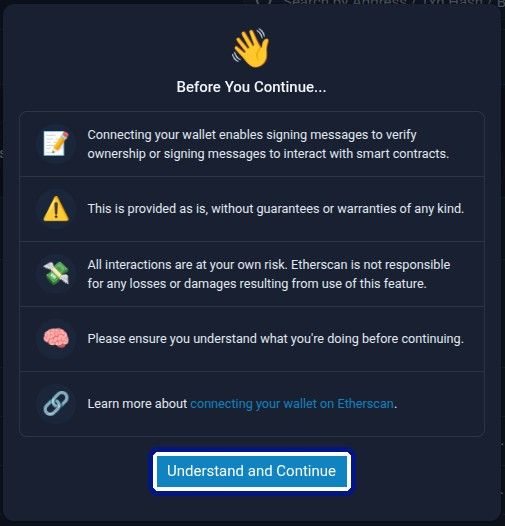
Step 2: Connect your wallet
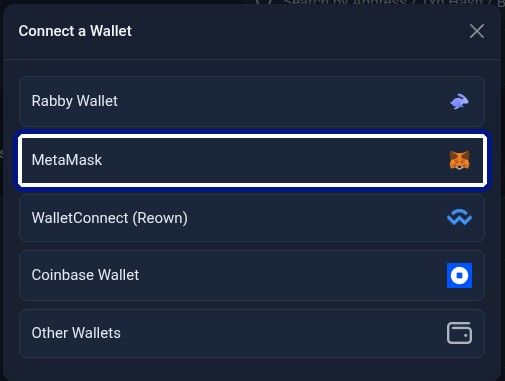
Choose MetaMask from the list. On a phone, choose WalletConnect and scan the QR code with your mobile wallet.
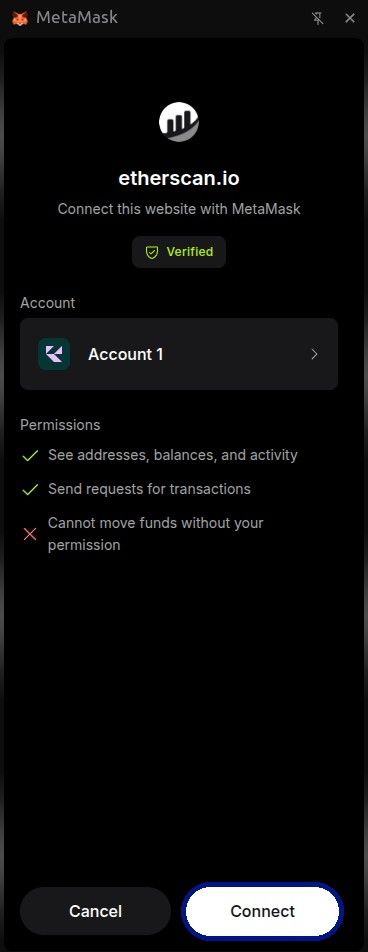
MetaMask opens. Select the account you need to sign with and click Connect.
Step 3: Check the address and paste your message
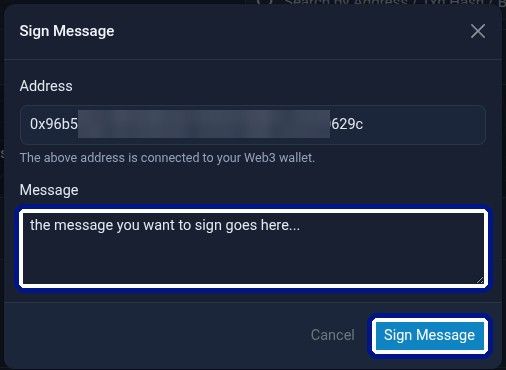
The Sign Message window opens with your connected wallet shown in the Address field.
- Confirm it's the right address. If it isn't, switch accounts in MetaMask and reconnect.
- Paste your message into the Message field, exactly as you received it.
- Click Sign Message.
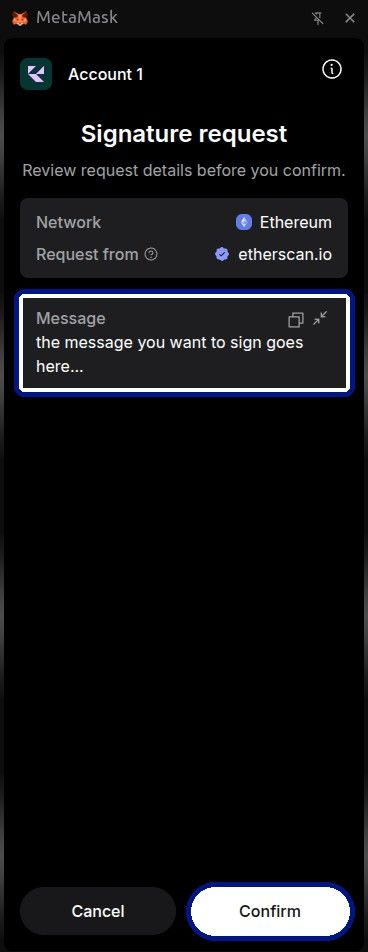
Step 4: Approve in your wallet
MetaMask shows a signature request. Check the message matches what you pasted, then click Confirm.
The request shows text only, with no amount and no gas fee attached. A prompt asking you to send funds or approve tokens is something else entirely, so reject it.
Step 5: Collect your signature
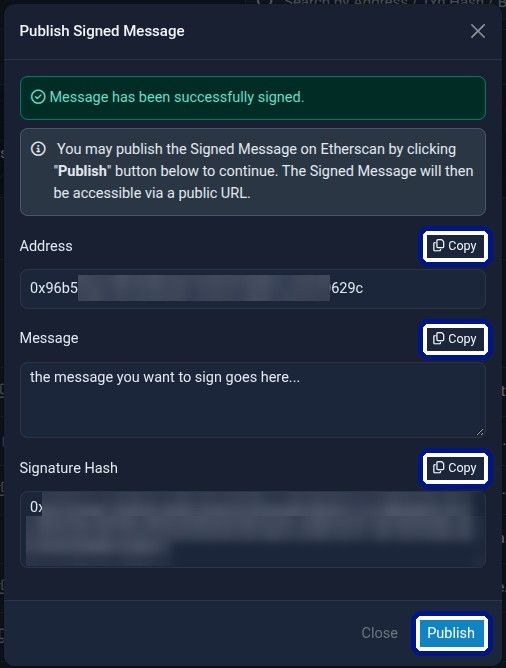
Etherscan confirms the message has been signed and displays three values: Address, Message and Signature Hash. Each has a copy button. Leave the window open.
Sharing your signature
Send it to whoever asked, in one of two ways.
Option A: copy the three values. Use the copy buttons and paste all three into your reply:
Address: 0x...
Message: (the exact message you signed)
Signature Hash: 0x...
Option B: publish and share a link. Click Publish and Etherscan saves your signed message to a public page at a URL like https://etherscan.io/verifySig/123456. Copy that link from your address bar and send it.
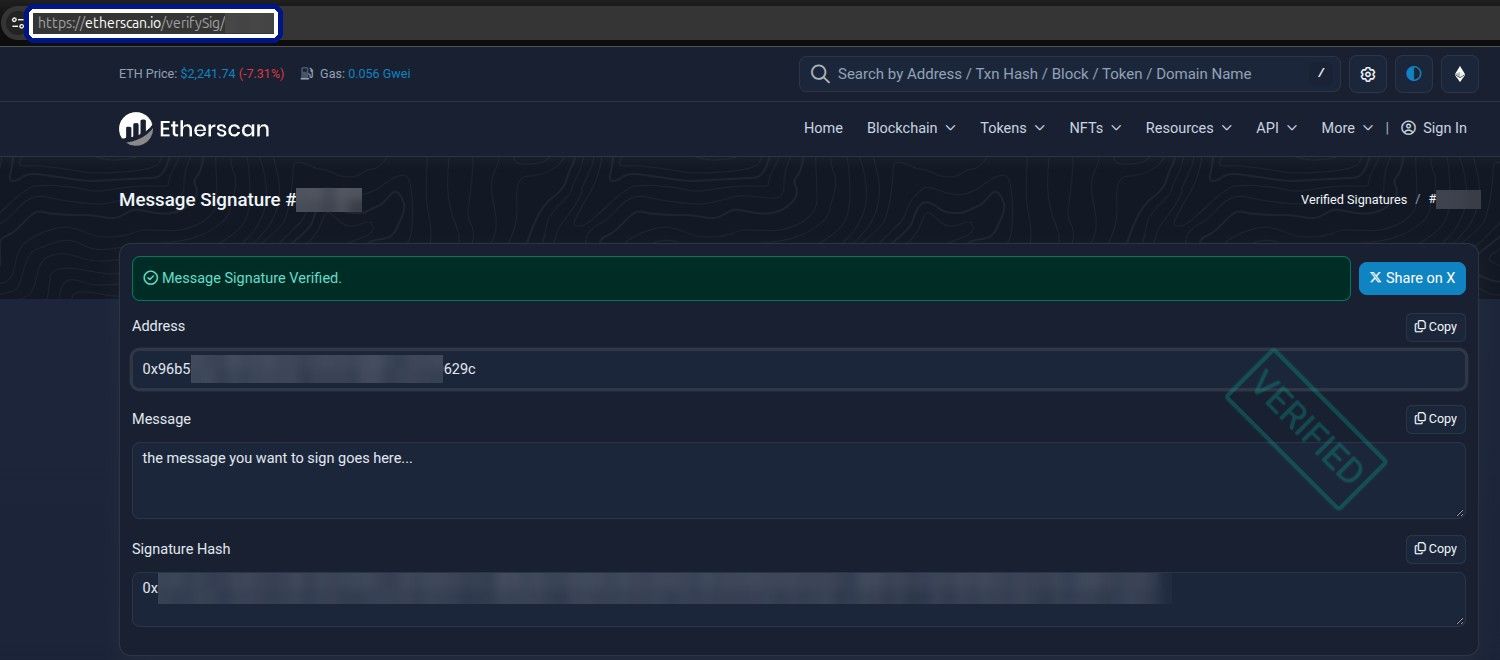
Published signatures are visible to anyone, so keep anything private out of the message you sign. A short confirmation with a reference code, of the kind support teams send, is safe to publish.
If something goes wrong
- "No wallet found" on Etherscan. Install or unlock MetaMask, refresh the page and try again. On a phone, use WalletConnect.
- The wrong address appears. Switch to the correct account in MetaMask, then reconnect on Etherscan.
- Your signature didn't verify. You likely signed with a different address, or the message picked up extra spaces or quotes. Sign again with the right wallet, pasting only the message.
- Your wallet asks for gas or token approval. Reject it. Message signing is always free.
- You paid from an exchange account. The exchange holds that address, so signing isn't possible. Contact the team that asked you.
Staying safe
Your seed phrase and private key stay with you, always. You can sign a message without either, so any request for them is a scam.
Check the site reads exactly etherscan.io before you connect. Read the request before confirming, where a genuine message signature displays text with no amount and no fee. Sign only messages you were expecting, from a source you already trust. If you need help, contact support through the help page.
Last updated: 10 Nov 2026